

What this guide covers
- Adding the
CometChatPushNotificationsSDK and initializing it. - Wiring
AppDelegateto forward APNs callbacks to the SDK and register for VoIP pushes. - Letting the SDK handle APNs alerts (foreground presentation, taps, quick reply, badge) and the full incoming-call experience via PushKit + CallKit.
- Handling notification taps and presenting the ongoing call screen via the delegate.
- Suppressing notifications for the chat that is currently open, clearing the badge on resume, and telling the SDK when the Calls stack is ready.
- Testing and troubleshooting.
The
CometChatPushNotifications SDK replaces the previous approach of copying CometChatAPNsHelper.swift, CometChatPNHelper.swift, and the AppDelegate+PN / AppDelegate+VoIP extensions from the UI Kit sample. APNs token registration, foreground presentation, tap-to-open, quick reply, badge management, delivery / campaign engagement receipts, and the full PushKit + CallKit incoming-call flow are all handled inside the SDK.How it works
- APNs is the transport: Apple issues the APNs device token (chat alerts) and the PushKit VoIP token (calls) — no FCM bridge is involved.
- CometChat’s role: The APNs Device and APNs VoIP providers you add in the dashboard hold your
.p8key. The SDK registers both tokens with CometChat automatically after login, so CometChat can route pushes on your behalf. - The SDK’s role:
CometChatPushNotificationsretrieves the tokens, registers them with CometChat, parses payloads, decides chat vs. call, presents CallKit for VoIP pushes, and calls back into yourCometChatPushNotificationsDelegatefor navigation and to present the ongoing call screen. - Cold-start VoIP: when the app is killed and a VoIP push arrives, PushKit wakes the app and the SDK presents the CallKit screen natively before any UI is built. On accept,
presentCallScreen(for:sessionId:)fires once yournotifyCallsSDKReady()has run.
Prerequisites
- The APNs Device provider, APNs VoIP provider, and
.p8setup from Getting Started (this guide assumes those are done). - The CometChat Chat SDK / UI Kit already integrated (you call
CometChatUIKit.init()/login()yourself). - Xcode 15+, iOS 15.1+ deployment target, Swift 5.9+.
- CometChatSDK ≥ 4.1.5 and CometChatCallsSDK ≥ 5.0.0 (SPM users must add these packages explicitly — see below).
- A physical device — APNs, PushKit, and CallKit do not work on the simulator.
Complete the Getting Started guide first — enable Push Notifications, add your APNs Device and APNs VoIP providers, and finish the Apple / Xcode setup (
.p8 key + capabilities). This guide covers only the iOS app wiring.1. Add the dependency
- Swift Package Manager
- CocoaPods
In Xcode, go to File → Add Package Dependencies… and add:Add the product
CometChatPushNotificationsSwift to your app target.2. Configure the app target
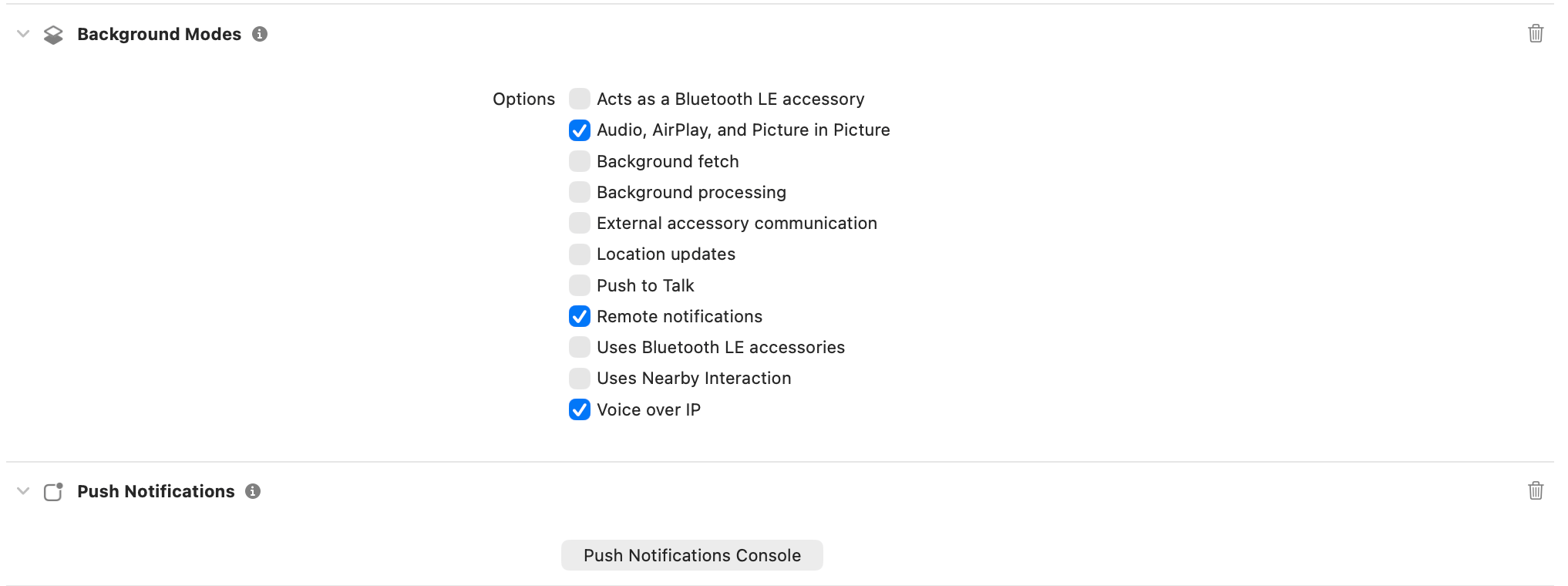
- Signing & Capabilities → + Capability — add Push Notifications and Background Modes. Under Background Modes tick Remote notifications, Voice over IP, and Audio, AirPlay, and Picture in Picture (needed while a call is active).
-
Entitlements — Push Notifications adds
aps-environmentfor you (developmentfor debug builds,productionfor release). -
Info.plist — add microphone and camera usage strings so CallKit can request them, and confirm the background modes are present:
- In the CometChat dashboard, keep the Bundle ID on your APNs providers in sync with your Xcode target’s bundle ID.
3. Store your credentials
Keep the values from Getting Started where your app can read them. The provider ID here is the APNs Device provider — the SDK also registers the VoIP token against the same provider automatically:AppConstants.swift
4. Initialize the SDK in AppDelegate
Initialize the SDK in application(_:didFinishLaunchingWithOptions:), set yourself as the delegate, register for VoIP pushes, and forward the three APNs UIApplicationDelegate callbacks. The SDK cannot intercept these callbacks itself — you must forward them:
AppDelegate.swift
CometChatPushNotificationsConfig accepts:
Token registration and rotation are handled automatically. After a successful
CometChat.login(...), the SDK binds the stored APNs and VoIP tokens to the user, and it re-registers them if either token changes. You do not need to call any registerToken API yourself.5. Wire SceneDelegate — notify Calls SDK and clear badge
Call notifyCallsSDKReady() after CometChatUIKit.init(...) succeeds so the SDK can present any incoming call that arrived during a cold start. Clear the badge every time the scene becomes active. Also disable the UI Kit’s in-app incoming call so CallKit is not doubled up:
SceneDelegate.swift
6. Suppress notifications for the open chat
On every chat screen, tell the SDK which conversation is active so it doesn’t show a banner for messages you can already see. Clear it when the screen goes away:MessagesVC.swift
7. Handle taps and calls via the delegate
AdoptCometChatPushNotificationsDelegate to route notification taps and present the ongoing call screen once the SDK has accepted a call via CallKit:
AppDelegate+PN.swift
pushMessages(user:group:), topMostViewController(), topMostNavigationController(), and dismissIfPresenting(_:) above are helpers you define in your AppDelegate — they know your app’s navigation structure. Delegate callbacks can also fire from background threads (PushKit and notification-response callbacks in particular), so wrap all UIKit work in DispatchQueue.main.async.8. Badge count
CometChat’s Enhanced Push Notification payload includes anunreadMessageCount field (total unread across all conversations). Enable it once on the dashboard:
- CometChat Dashboard → Notification Engine → Settings → Preferences → Push Notification Preferences.
- Enable the Unread Badge Count toggle.
enableBadgeCount: true on the config, iOS updates the app-icon badge from the APNs payload automatically — no extra client code is needed to display it. Clear the badge and dismiss stale notifications every time the app resumes by calling clearBadgeCount() from sceneDidBecomeActive (already wired in step 5).
9. Testing checklist
- Install on a physical device. Grant notification, microphone, and camera permissions when prompted.
- Log in and confirm the delegate does not report
onPushTokenRegistrationFailed— that means both the APNs device token and the VoIP token were registered against your providers. - Send a message from another user:
- App foregrounded on a different chat: banner appears (if
showInAppNotifications: true). - App foregrounded on the same chat: no banner (foreground suppression from step 6).
- App backgrounded / killed: notification appears; tapping opens the right conversation via
navigateToChat(for:). - Long-press the notification → Reply — the quick-reply text is sent as a message in that conversation.
- App foregrounded on a different chat: banner appears (if
- Trigger an incoming CometChat call and confirm:
- The CallKit incoming screen shows the caller with Accept / Decline, even on the lock screen.
- Accepting presents your ongoing call screen from
presentCallScreen(for:sessionId:). - Ending the call from either the CallKit screen or your ongoing screen tears down cleanly (via
endCallKitSession()andonCallCleanupComplete()). - A missed call fires
onCallMissed(call:reason:)and posts a missed-call notification.
- Force-quit the app, trigger a call, and confirm the CallKit UI still appears — this exercises the PushKit cold-start path.
10. Troubleshooting
Resources
push-notifications-sdk-ios
Source, releases, and installation instructions (SPM & CocoaPods) for the drop-in push & VoIP SDK.