> ## Documentation Index
> Fetch the complete documentation index at: https://cometchat-22654f5b-docs-new-flutter-push-notifications.mintlify.site/llms.txt
> Use this file to discover all available pages before exploring further.
# Getting Started
> Getting started with CometChat Push Notifications — enable push, add providers, configure Firebase and APNs, then pick your platform.
The steps below are common to every platform. Complete them once, then follow your platform guide for app-specific wiring (Gradle, Podfile, manifest, service worker, token registration). Each platform guide links back here.
Which providers and credentials you need depends on your platform: **Android / Web / React Native (Android)** use **FCM**; **iOS / React Native (iOS) / Flutter (iOS)** use **APNs** (plus **APNs VoIP** for calls).
## CometChat dashboard setup
1. Go to **Notifications → Settings** and enable **Push Notifications**.
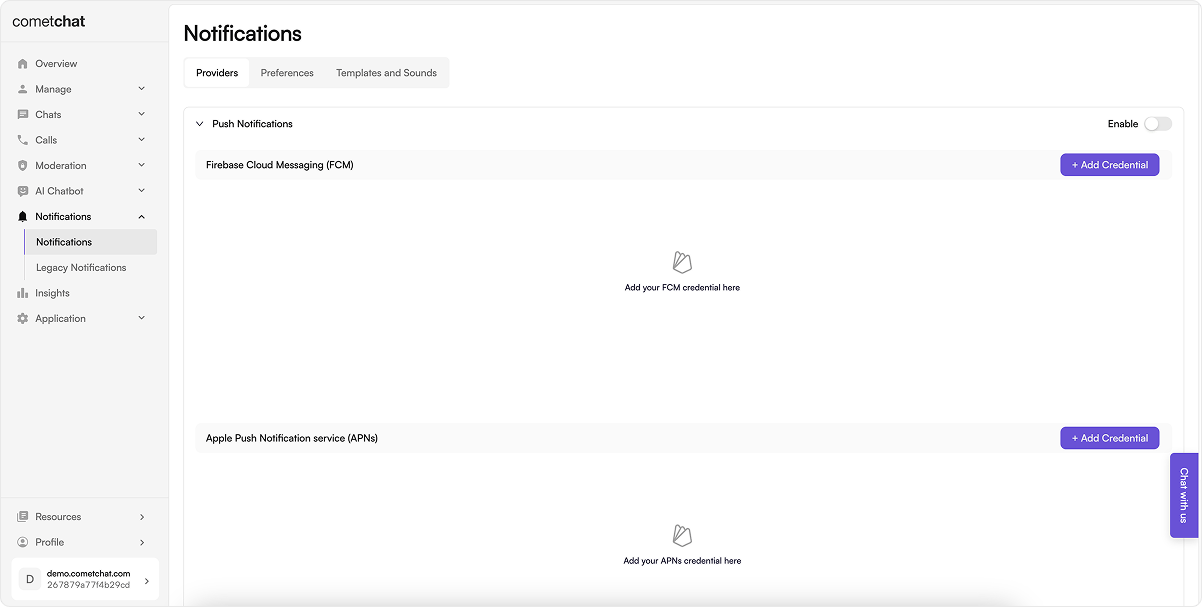 2. Click **Add Credentials** and add the provider(s) your platform needs:
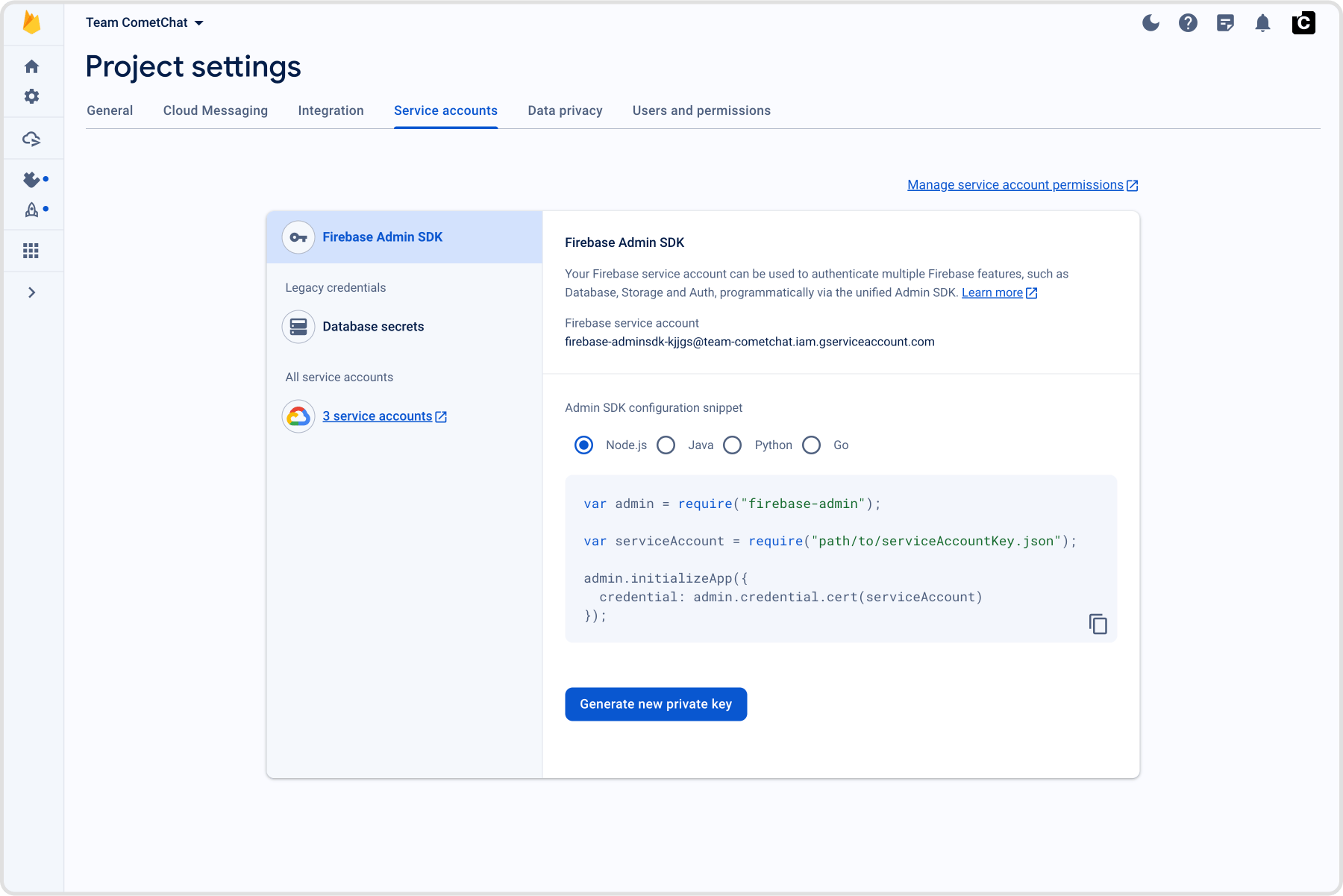
* **FCM** (Android, Web, React Native Android, Flutter Android): upload the Firebase **service account JSON** (Firebase → Project settings → Service accounts → Generate new private key).
* **APNs Device** (iOS alerts): upload your `.p8` Auth Key with its **Key ID**, **Team ID**, and **Bundle ID**.
* **APNs VoIP** (iOS calls): add a second provider with the same `.p8` (recommended for CallKit reliability).
2. Click **Add Credentials** and add the provider(s) your platform needs:
* **FCM** (Android, Web, React Native Android, Flutter Android): upload the Firebase **service account JSON** (Firebase → Project settings → Service accounts → Generate new private key).
* **APNs Device** (iOS alerts): upload your `.p8` Auth Key with its **Key ID**, **Team ID**, and **Bundle ID**.
* **APNs VoIP** (iOS calls): add a second provider with the same `.p8` (recommended for CallKit reliability).
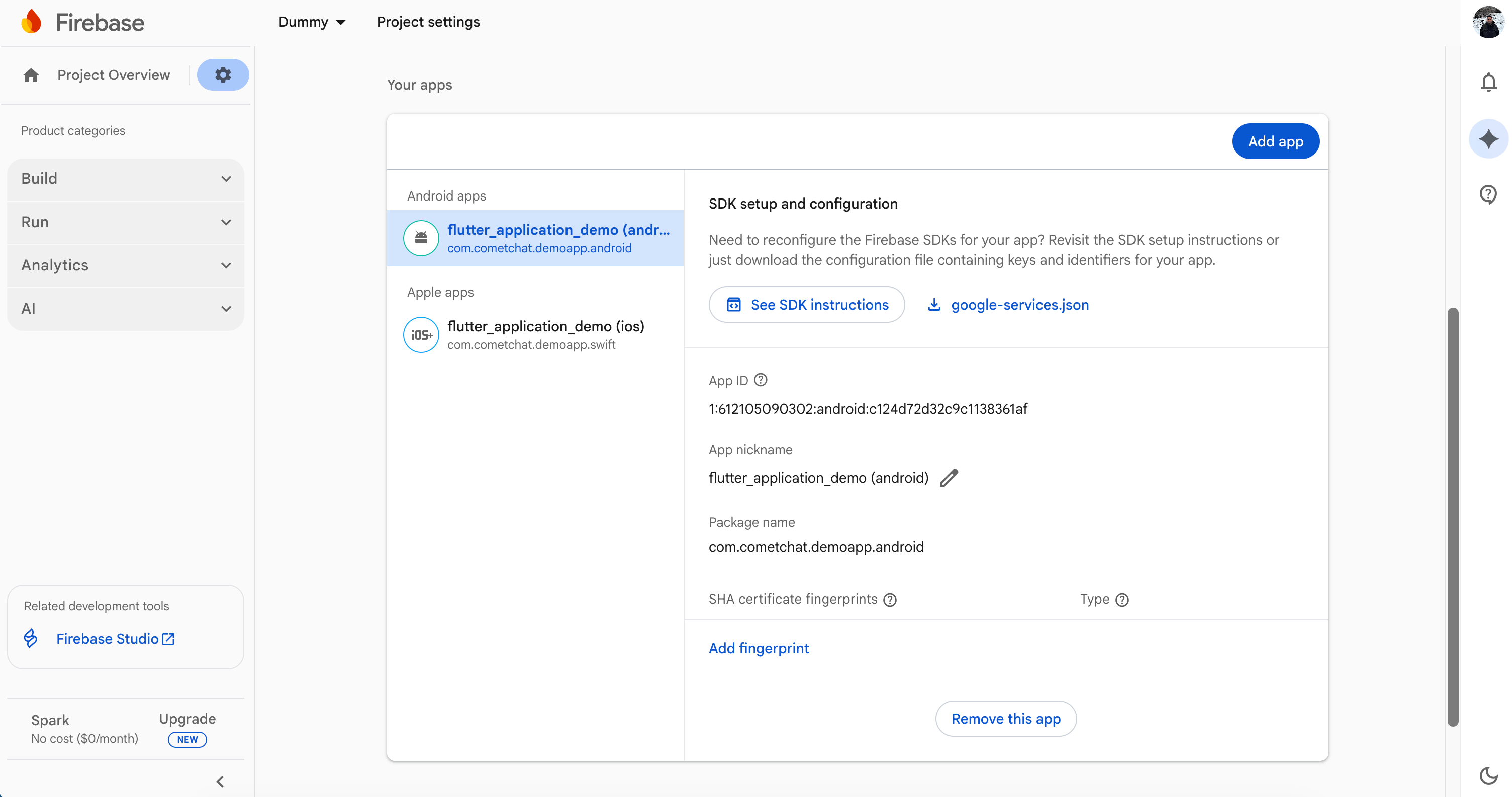
 3. Copy each **Provider ID** and keep your **App ID**, **Region**, and **Auth Key** handy — you'll add these to your app's constants when registering tokens.
## Firebase configuration
Required for FCM (Android, Web, React Native Android, Flutter Android).
1. In the [Firebase Console](https://console.firebase.google.com/), create or select a project and enable **Cloud Messaging**.
2. Register the app for your platform and download its config file:
Register your Android package name (the same as `applicationId` in `android/app/build.gradle`) and download **`google-services.json`** into `android/app/`.
Add a **Web** app (``), copy the **Firebase config** object, and under **Project settings → Cloud Messaging → Web Push certificates** generate/copy the **VAPID key**.
3. For the CometChat **FCM** provider, generate a **service account JSON** under **Project settings → Service accounts → Generate new private key** and upload it in the dashboard step above.
3. Copy each **Provider ID** and keep your **App ID**, **Region**, and **Auth Key** handy — you'll add these to your app's constants when registering tokens.
## Firebase configuration
Required for FCM (Android, Web, React Native Android, Flutter Android).
1. In the [Firebase Console](https://console.firebase.google.com/), create or select a project and enable **Cloud Messaging**.
2. Register the app for your platform and download its config file:
Register your Android package name (the same as `applicationId` in `android/app/build.gradle`) and download **`google-services.json`** into `android/app/`.
Add a **Web** app (``), copy the **Firebase config** object, and under **Project settings → Cloud Messaging → Web Push certificates** generate/copy the **VAPID key**.
3. For the CometChat **FCM** provider, generate a **service account JSON** under **Project settings → Service accounts → Generate new private key** and upload it in the dashboard step above.
 ## iOS (Apple) setup
Required for any iOS target (native iOS, React Native iOS, Flutter iOS).
1. **APNs Auth Key (`.p8`)** — in the [Apple Developer Member Center](https://developer.apple.com/membercenter) → **Certificates, Identifiers & Profiles → Keys**, click **+**, enable **Apple Push Notification service (APNs)**, register, and download the `.p8`. Note the **Key ID**, **Team ID**, and your **Bundle ID** — you'll upload these to the CometChat APNs provider(s) in the dashboard step above.
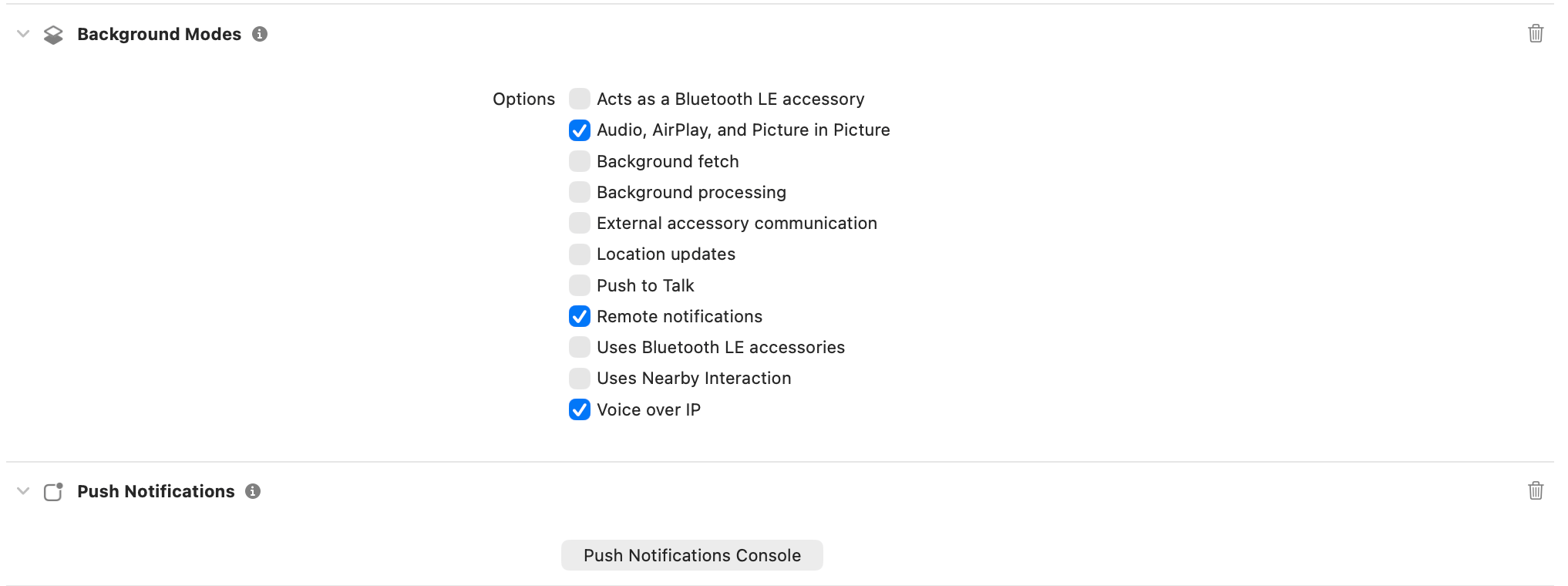
2. **Capabilities** — in Xcode, enable **Push Notifications** and **Background Modes → Remote notifications** (add **Voice over IP** as well if you support calls). Add microphone/camera usage strings to `Info.plist` for CallKit.
**`.p12` certificates are deprecated.** Apple recommends `.p8` Auth Keys — one key works for all your apps, they never expire, and they are the only format actively supported going forward. Migrate to `.p8` if you haven't already.
## iOS (Apple) setup
Required for any iOS target (native iOS, React Native iOS, Flutter iOS).
1. **APNs Auth Key (`.p8`)** — in the [Apple Developer Member Center](https://developer.apple.com/membercenter) → **Certificates, Identifiers & Profiles → Keys**, click **+**, enable **Apple Push Notification service (APNs)**, register, and download the `.p8`. Note the **Key ID**, **Team ID**, and your **Bundle ID** — you'll upload these to the CometChat APNs provider(s) in the dashboard step above.
2. **Capabilities** — in Xcode, enable **Push Notifications** and **Background Modes → Remote notifications** (add **Voice over IP** as well if you support calls). Add microphone/camera usage strings to `Info.plist` for CallKit.
**`.p12` certificates are deprecated.** Apple recommends `.p8` Auth Keys — one key works for all your apps, they never expire, and they are the only format actively supported going forward. Migrate to `.p8` if you haven't already.
 ## Choose your platform
After completing the setup above, follow the guide for your platform to wire the client, register tokens after login, and handle taps/calls/badges.
} href="/notifications/android-push-notifications">
UI Kit implementation
} href="/notifications/ios-push-notifications">
UI Kit implementation
} href="/notifications/flutter-push-notifications">
Android + iOS
} href="/notifications/react-native-push-notifications-android">
UI Kit implementation
} href="/notifications/react-native-push-notifications-ios">
UI Kit implementation
} href="/notifications/web-push-notifications">
UI Kit implementation
## Choose your platform
After completing the setup above, follow the guide for your platform to wire the client, register tokens after login, and handle taps/calls/badges.
} href="/notifications/android-push-notifications">
UI Kit implementation
} href="/notifications/ios-push-notifications">
UI Kit implementation
} href="/notifications/flutter-push-notifications">
Android + iOS
} href="/notifications/react-native-push-notifications-android">
UI Kit implementation
} href="/notifications/react-native-push-notifications-ios">
UI Kit implementation
} href="/notifications/web-push-notifications">
UI Kit implementation